Setup Exchange ActiveSync on your Samsung Galaxy, Note or Tab
Setup Exchange ActiveSync on your
Samsung Galaxy, Note, or Tab
When you add your Exchange ActiveSync account, you
can sync your Mail,
Contacts, Calendars, Reminders, and Notes
wirelessly with your Android device.
1. Add your Exchange account
From the Home screen, touch
Menu  > Settings
  > Add account > Microsoft® Exchange ActiveSync.
2. Enter your information
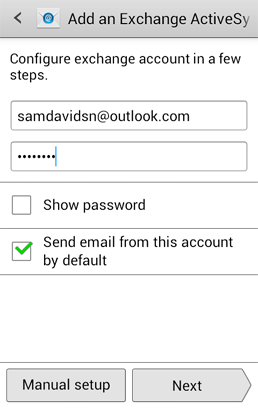
Enter your email address and password. Mark Send email from this account by
default (available only if you have already added another email account) to set this
as the default email account, and then touch Next.
Username: @kcare.com.au email address
Password:
3. Connect to the Exchange Server
Your Android device will try to find your Exchange Server. If it is successful, you will
skip to Step 5.
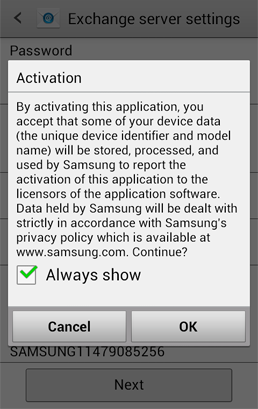
c. Review the Activation screen. Unmark the Always show option if you do not want
to see this message again when setting up an ActiveSync account, and touch OK
4. Sync your content
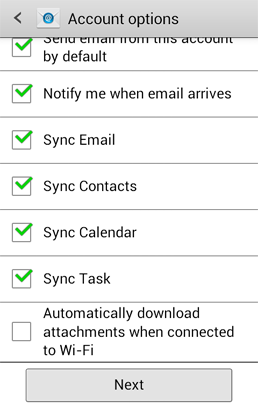
You can sync Mail, Contacts, Calendars, Tasks, Reminders, and Notes. When you're
finished, tap Next.
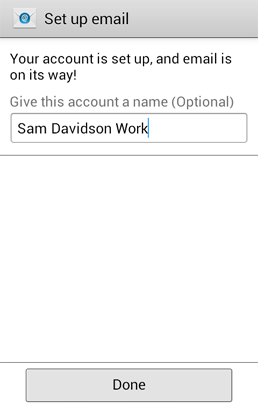
Enter a name for the account, e.g KCARE - O365. This will help you easily identify this
account if you add
other email accounts to your device. Then touch Done.