Email - Setup Exchange ActiveSync on your iPhone
Setup Exchange (Office 365) ActiveSync on your
iPhone, iPad, or iPod touch
When you add your Exchange ActiveSync account, you can sync your Mail,
Contacts, Calendars, Reminders, and Notes wirelessly with your iOS device.
1. Add your Exchange account
Tap Settings > Mail > Accounts > Add Account > Microsoft Exchange (If another account\mailbox exists).
Alternatively, tap Settings > Accounts & Passwords > Add Account > Exchange (If your iPhone has the latest iOS update).
2. Enter your information
Enter your email address and password. If you want to, you can also
enter an account description, e.g. KCARE - O365.
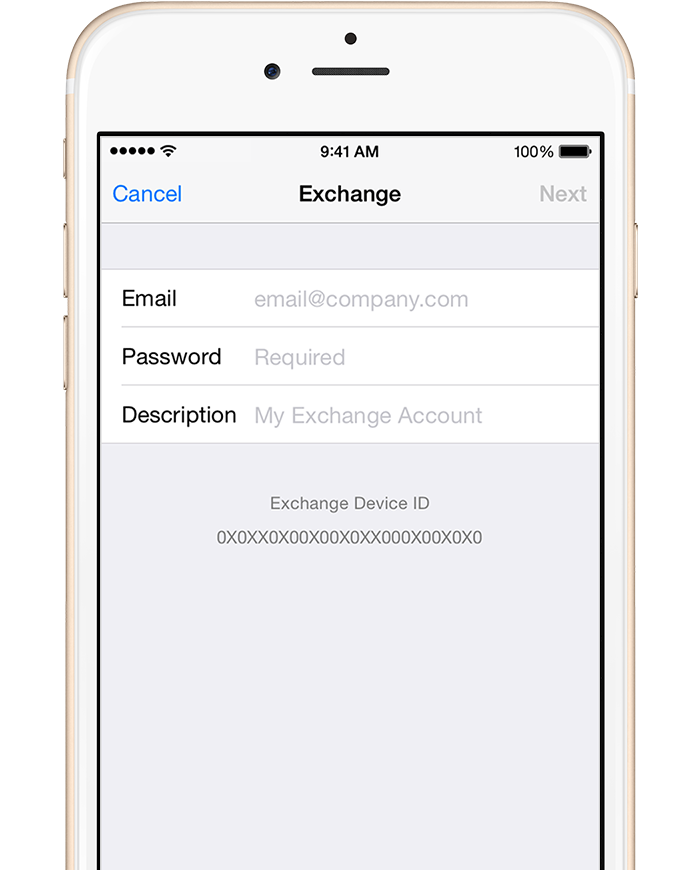
3. Sync your content
You can sync Mail, Contacts, Calendars, Reminders, and Notes. When you're
finished, tap Save.
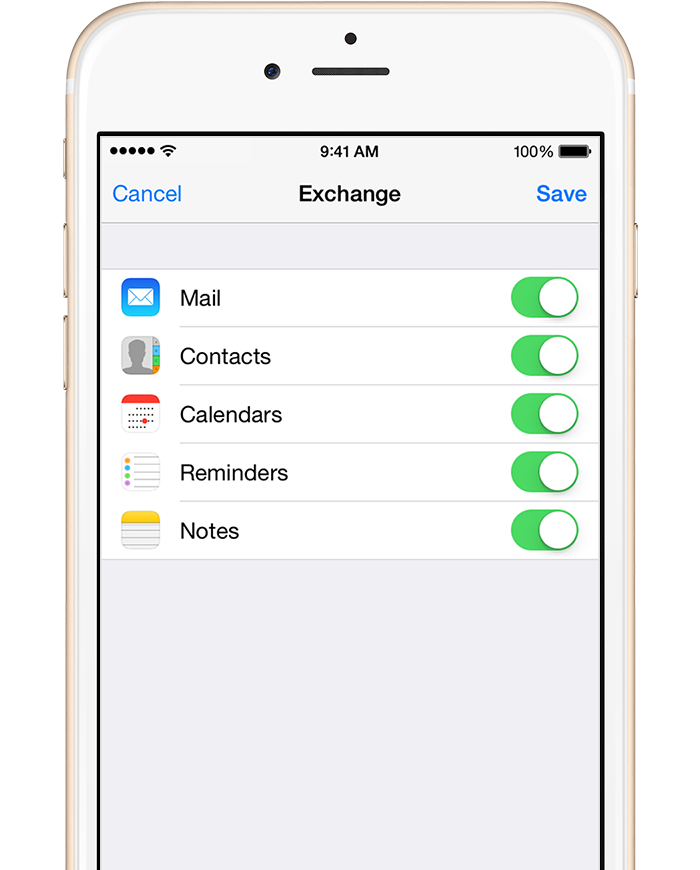
4. Remove iPhone\iPad Signature (Important)
We have implemented Exclaimer, a Signature Manager service that automatically adds signatures during the sending process. We must ensure that the default iPhone iOS signatures are removed on your devices; otherwise, the "Sent from my iPhone" and K Care Holdings Exclaimer signatures will both be appended.
To remove the iPhone signature tap Settings > Mail, scroll down to the Composing section and then select Signature then remove any signature shown. If you have other email accounts on your device, you can manage these signature by selecting 'Per Account' and removing the signature from the account name you created in Step 2.

5. Setup Complete
The setup procedure is now complete.